Explore freely. Before your personalized design preview, a short project form helps Gage understand your plans and follow up. No payment is collected here.
How to use this First time? Follow these simple steps.
Start with one photo and one change. You can explore the choices before deciding what to request.
- Choose the part of your home.
Use Exterior makeover for the outside or Interior makeover for a room. Choose your page before uploading; switching pages starts a separate workspace.
- Add a clear photo.
Tap Upload your photo and choose a picture from your phone or computer. Your phone may also offer a camera option. Use good daylight and include the whole area you want to change. The inspiration picture is an example, not your uploaded photo.
- Pick what you want to change.
Tap an item’s name, then Customize. Choose a material or color; Customize alone does not select a change. Keep existing means leave it as it is. Not visible / N/A means the item is not in your picture or does not apply.
- Check your choices.
Look at the selected upgrade count and the choices shown under each item. Start with one or two changes. “Anything else in mind?” adds detail to those selected changes; it does not select new items. Leave image size on Recommended if you are unsure.
- Request your preview.
Use Sign in to create your preview if shown. It opens another tab; sign in there, then return here. Tap Reveal the possibilities, fill in the short project form, and read the contact permission before agreeing. Tap Save project & create preview once. Keep this page open while it works; a detailed preview can take a few minutes.
- See and save the result.
Your result comes into view automatically and shows your original and the design preview together. Drag the divider left or right to reveal more of each photo. You can also focus the comparison slider and use the arrow keys. Tap Download to save the preview. If you change selections afterward, the existing picture stays the same until you request another preview.
- Talk with Gage when you are ready.
Tap Request a project consultation near the bottom of the page. You can do this without signing in or generating a preview. Share your project and contact permission. Submitting asks Gage to follow up; it does not book an appointment or provide a price.
A design preview is a starting point for discussion. Colors and details may vary; construction scope and pricing need a project assessment.
A little help if you get stuck
My photo will not upload
Choose one JPG, PNG, or WebP photo under 20 MB. If your phone photo is HEIC, save or export a JPEG copy first. Try a smaller copy if the photo is too large. Take the photo in your camera app first if no camera option appears.
I selected Customize, but nothing changed
Choose an actual color, material, or available style as well. Your uploaded photo stays unchanged while you choose. A new picture appears only after you submit the project form and the preview finishes. Check any message above the Reveal button for a missing choice.
I cannot sign in or the preview is unavailable
Keep this page open and return to it after signing in in the other tab. If the site says previews are unavailable or a limit has been reached, follow the message and try later. You can still request a consultation without signing in.
The preview is taking a long time or failed
While “Creating your preview…” is shown, wait without submitting again. If an error appears, your photo and choices remain on this open page. Read the message before retrying. Avoid refreshing or closing the page, which can clear your work. If a project form times out, retry the same open form to avoid a duplicate inquiry.
YOUR HOME. REIMAGINED.
See what’s possible.
Small changes. A different feeling. Start with your home.
- 01 Upload
- 02 Customize
- 03 Reveal
Your canvas
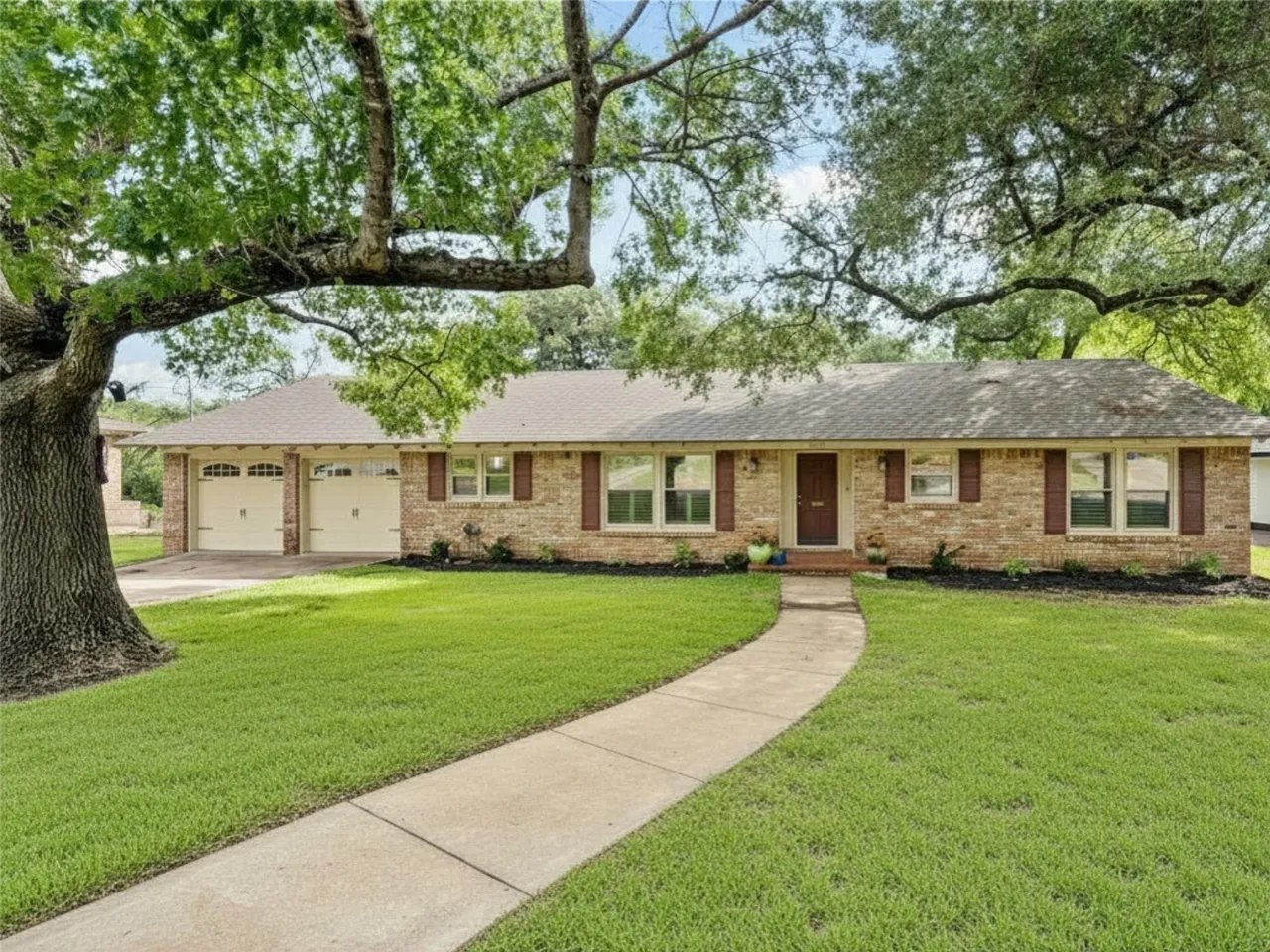 INSPIRATION PHOTO
Your home stays your home.ALWAYS PRESERVED
Only selected, visible features are eligible for changes. These rules stay on for every preview.
Design previews are design ideas, not construction plans. Details may vary.
For the best preview, use a clear, straight-on exterior photo.
MAKE IT YOURS
The details make
the difference.
Tap an item, choose Customize, then pick a material or color. Leave everything else on Keep existing.
Next: a short project form, then your preview. Your photo stays unchanged until the preview is ready.
Upload and customize now. Your reveal will be available once the preview service is ready.